

Guide · 6-minute read
How to budget without linking your bank account
Plan your year, keep your figures up in seconds a day, and never hand over a bank login. A plain method, a worked example, and where an app can help.
Most of the well-known budgeting apps start the same way: they ask you to connect your bank. For many people that is fine. Others would rather not give any app access to their accounts, or have had a connection break and quietly stop updating, or simply find that a budget filled in by a machine is a budget they stop looking at.
If that is you, you are not choosing the hard way. You are choosing a different way, and it works well — often better — for people who like to plan.
This article shows the method, step by step, with an example household. At the end, you’ll see where an app can take the typing out of it without ever asking for a bank login.
What linking a bank really gives you
It’s worth being fair about it. Linking a bank gives you one thing: your transactions arrive by themselves.
What it doesn’t give you is a plan. A linked app tells you what already happened, sorted into categories it guessed. The planning — what you intend to spend each month, which bills come when, what you set aside — is still yours to do.
So budgeting without a link isn’t about missing the important part. The important part was never the download. It is:
- a plan for the year, month by month;
- a quick way to record what really happens;
- a regular look at the two side by side.
The method, in five steps
1Write down every account and what it holds today
Checking, savings, cash, each credit card, each loan. One line each, with today’s balance. This is your starting point, and you’ll only do it once a year.
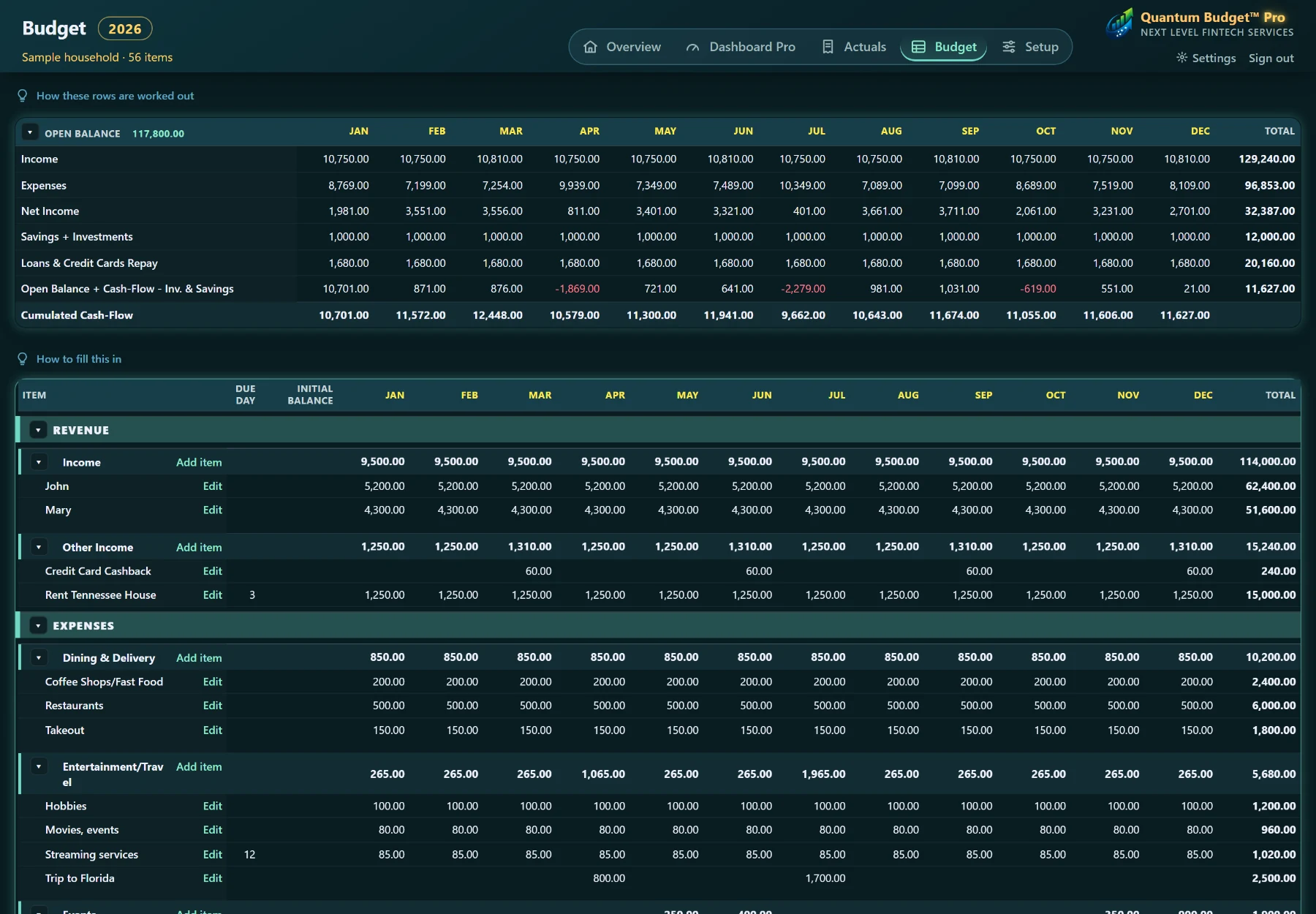
2Plan the year, month by month
Income first: what comes in, and in which months. Then the bills that arrive on a date — rent or mortgage, insurance, child care, the property tax that comes four times a year. Put each one in the months it actually leaves your account, with its due day.
Then the everyday spending: groceries, fuel, eating out. These have no due day; they happen a little at a time.
Finally, savings — planned like a bill, a fixed amount each month on purpose, not “whatever is left”.
3Choose how you’ll record what happens
Without a bank link, there are three good ways, and most people mix them:
- Type it at the till. Ten seconds on your phone, while you still remember what it was for.
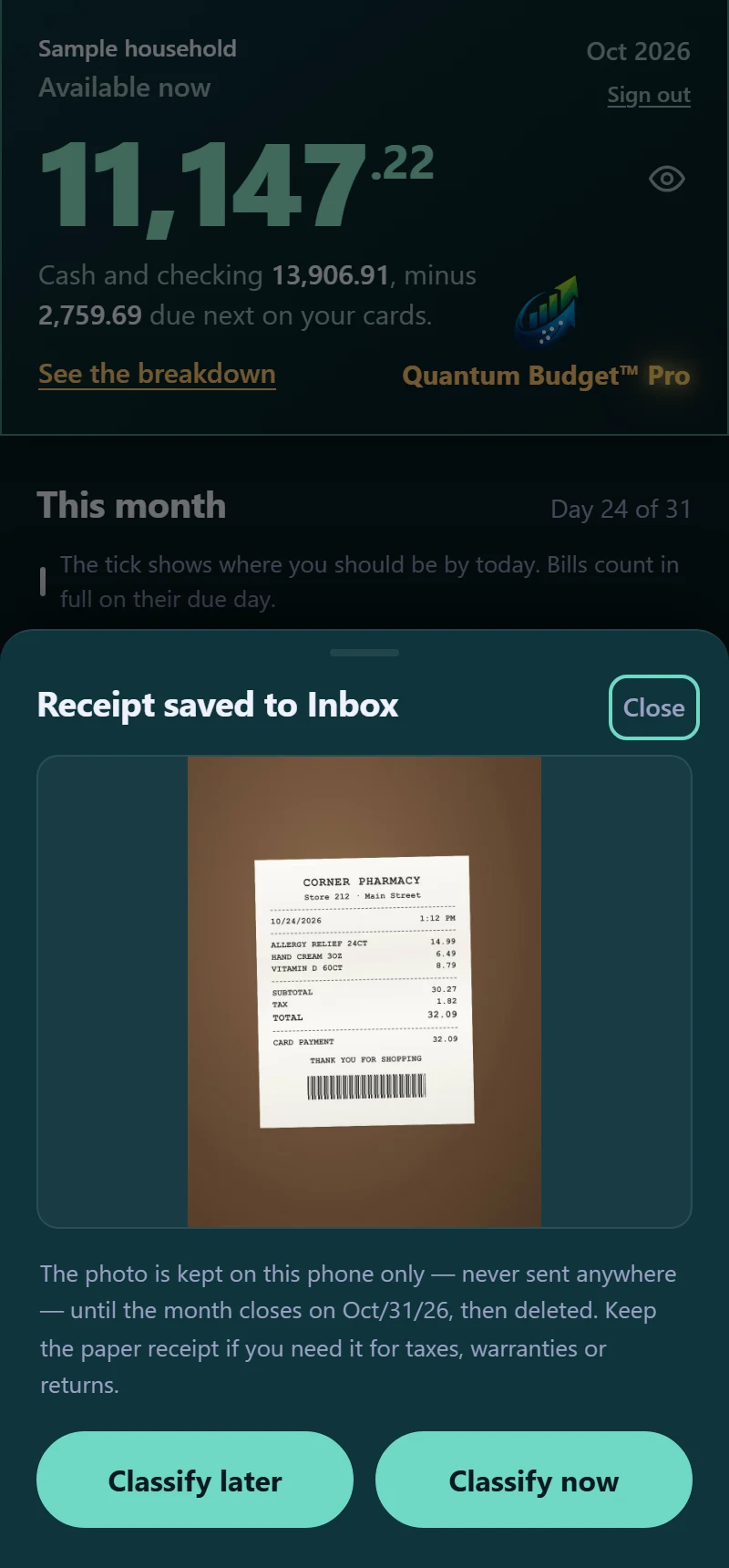
- Photograph the receipt and sort it out later, when you have a minute.
- Download your bank’s own file once a week or once a month — most banks offer one (a CSV, or an OFX or QFX file) — and go through it in one sitting.
The last one is worth knowing about. Downloading a file from your own bank, while signed in to your bank, is not the same as linking an app. Nothing is connected. You hand over a file, once, and you decide what each line is.
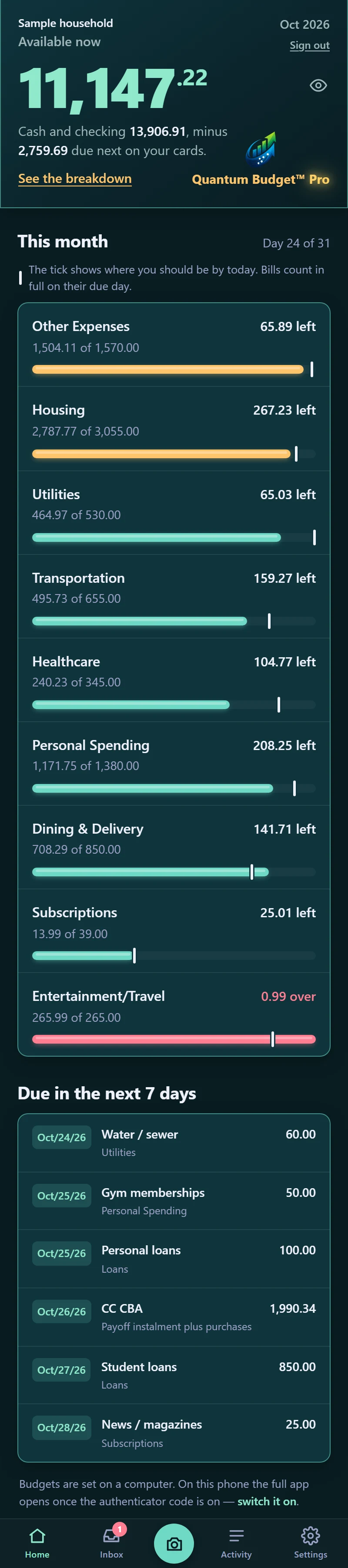
4Look at the month against the plan, once a week
Not every day. Five minutes on a Sunday evening: which lines are on track, which are running ahead, what is due in the next few days.
5Close the month
At the end of each month, make sure everything is recorded, then look at the month as a whole. What surprised you? Does next month’s plan still fit? This is where planning actually happens.
A worked example: John and Mary
John and Mary are an example household. Every figure here is invented.
John and Mary have a checking account, a savings account, a little cash, two credit cards and a car loan. They don’t link any of them to anything.
In January, they spent one evening planning the year: John’s and Mary’s pay, the HOA fee of 400.00 due on the 5th, child care of 1,100.00 due on the 20th, groceries at 800.00 a month, restaurants at 400.00, and 400.00 a month into their emergency fund.
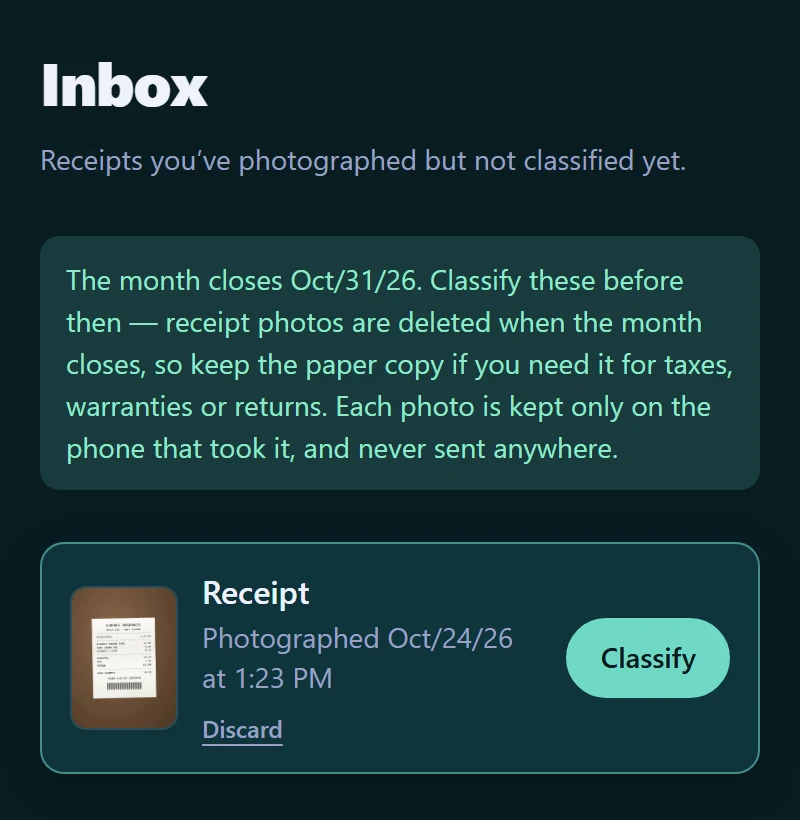
On a Saturday in October, Mary buys groceries for 86.40. At the till she photographs the receipt. That evening she opens the Inbox, sees the receipt waiting, and files it under Groceries & Supplies. The shop’s name came up by itself — they’d used it before.
On Sunday, John has a quick look at the month. Groceries are a little ahead of where they should be by the 18th; restaurants are well under. The car insurance is due on Wednesday. Nothing needs doing.
On the last day of the month, John downloads the checking account’s file from the bank’s website and brings it in. Of 38 lines, 31 are already in the app, entered during the month, and are recognised as such. Seven are new — two direct debits and a few small things nobody typed. He chooses what each is from a short list, and brings them in. Ten minutes, and the month is complete.
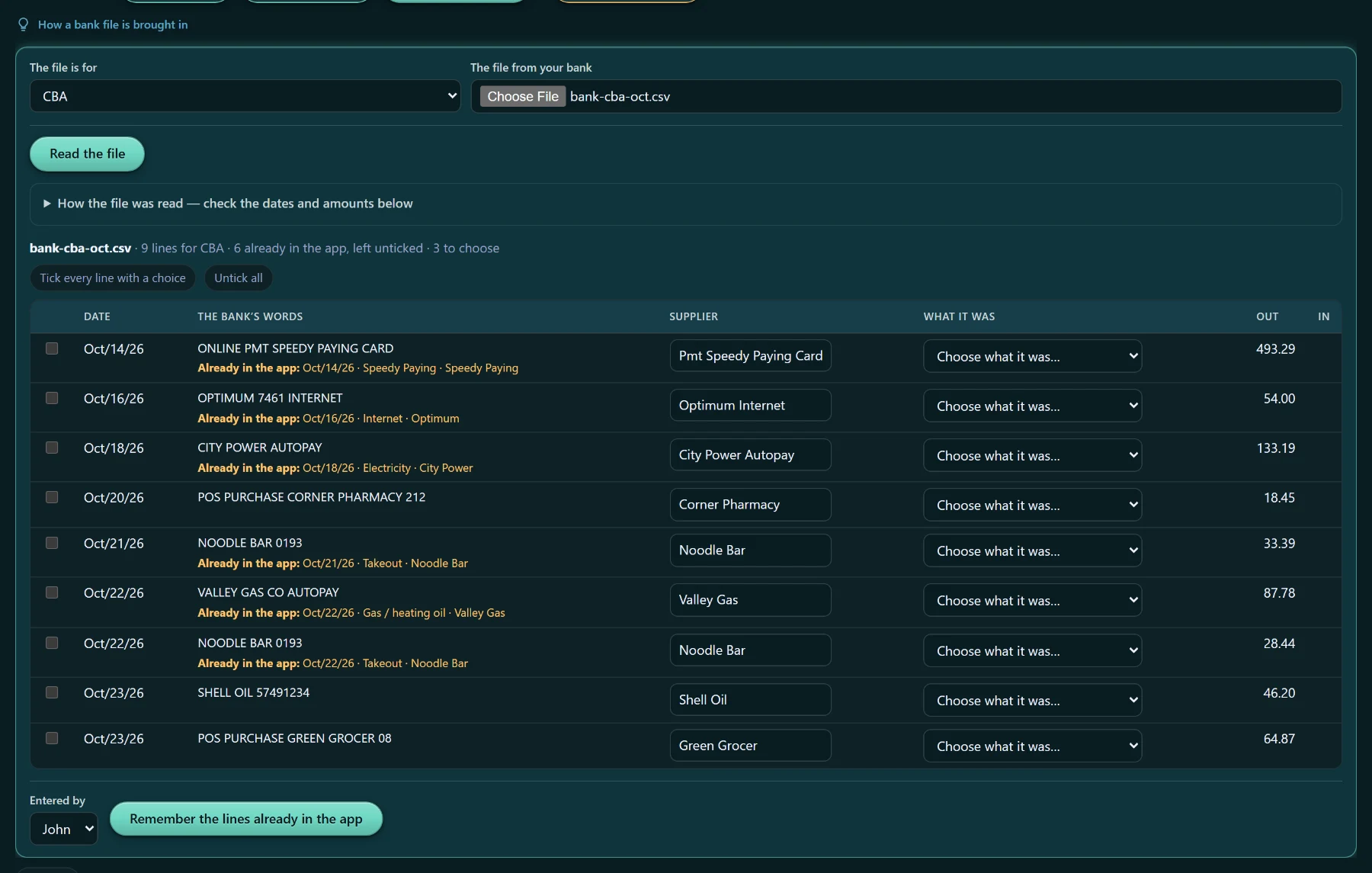
No bank login was given to anyone at any point.
What you gain by doing it this way
- You notice your money. Typing or filing an entry takes seconds, and those seconds are when you see what things cost.
- Nothing is guessed. You decide what each entry is. A refund isn’t mistaken for income; a transfer to savings isn’t counted as spending.
- Your bank login stays with you. There is nothing to reconnect, and no access to remember to withdraw.
- It still works when you change banks, open an account, or close one.
What you give up is honest too: a few seconds per purchase, or ten minutes per month with the bank’s file. For a planner, that’s usually a fair trade.
Doing it in Quantum Budget
Quantum Budget was built for exactly this. It never connects to a bank and never asks for a bank password.
- The year’s plan sits on one screen: every month across, every line down, each bill with its due day.
- Entries in seconds on your phone or your computer. Type a supplier once, and the next time its category, budget line and how you paid fill in by themselves.
- Snap the receipt. The phone reads the photo and fills in who you paid and the total, for you to check. The photo stays on your phone and is deleted when the month closes.
- Bring in your bank’s own file (CSV, OFX or QFX) on a computer. Lines you’ve already entered are recognised, and the app remembers your choices, so next month’s file arrives mostly filled in.
- This month at a glance, with a mark on each line for where you should be by today. Bills count in full on their due day; everyday spending is paced across the month.
- Your figures are yours: download everything as a spreadsheet, any time.
It works in a browser on your computer and on your phone, where it can sit on your home screen like an app.
30 days free
Try it for 30 days
Quantum Budget Online comes in two plans. Light shows where you stand. Pro also shows where you are heading, with a forecast of the rest of your year.
Light: US$4.99 a month or US$39 a year
Pro: US$8.99 a month or US$79.99 a year
30 days free on either plan. Your card is taken at the start and not charged for 30 days; cancel within them and you pay nothing.
Quantum Budget is budgeting software. It does not connect to a bank, does not hold or move money, and nothing in this article is financial advice.