

Guide · 6-minute read
From a spreadsheet to an app without losing your method
Outgrown your budget spreadsheet? What to keep, what an app adds, and how to move a year over without losing your method, your history or your control.
If you keep your budget in a spreadsheet, you probably built it yourself, or chose one carefully and made it yours. You know every row. It does what you want, the way you want it.
And yet, at some point, many spreadsheet budgeters notice the same things. The receipts pile up until the weekend. Your partner never opens the file. The credit cards are always slightly off. You’d love to see the year’s end, but rebuilding the formulas each month is a chore.
That’s not a sign your method is wrong. It’s a sign the method has outgrown the tool. This article is about moving to an app without giving up the way you plan.
First, name your method
Before choosing any tool, write down what you actually do. Most good spreadsheet budgets share a few habits:
- A year, month by month. Twelve columns, planned ahead, not just a running list of spending.
- Your own categories and lines, in your own words.
- Bills in the month they’re paid, with the day they’re due.
- Savings planned like a bill, not left to the end of the month.
- Budget against actual, line by line, so you can see where you’re over and where you’re under.
- A record you can read and keep, in a file that’s yours.
If an app can’t keep these, it isn’t the right app for you, whatever else it offers.
What to look for when you move
Does it let you plan the whole year? Many apps are built around this month only. A planner needs twelve months, side by side.
Does it keep your categories, or impose its own? Your names, your structure.
Can you bring your history with you? Starting from zero means losing a year of insight.
Can you take your figures out again? A full download, any time, in a spreadsheet you can open. If you ever leave, you leave with everything.
Does it handle cards properly? Card spending reaches your bank only when the card is paid. Many spreadsheets get this slightly wrong; an app should get it right.
Does it ask for your bank login? You may be happy to give it; you may not. If you’ve been happy typing your own figures, you don’t need a tool that insists on linking.
What an app can add
Moving isn’t only about keeping things. It’s also about what a spreadsheet does poorly.
- Entries where you are. On your phone, at the till, in seconds — instead of a stack of receipts by the computer.
- Two people, one plan. Both of you entering from your phones, into the same budget.
- Cards handled for you. Statement dates, the payment that’s due, and what’s been charged since.
- A forecast that keeps itself up to date, without copying figures across at the end of each month.
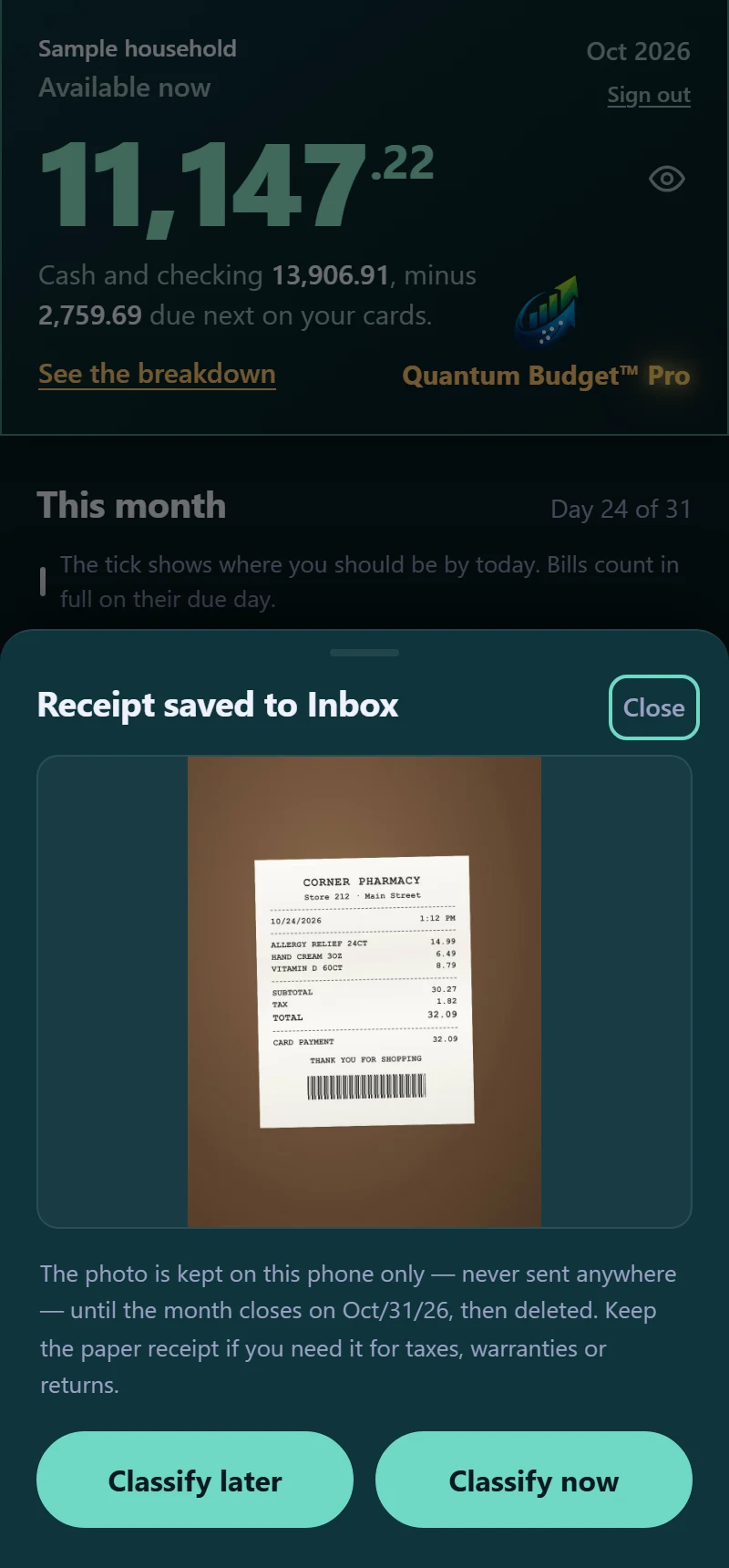
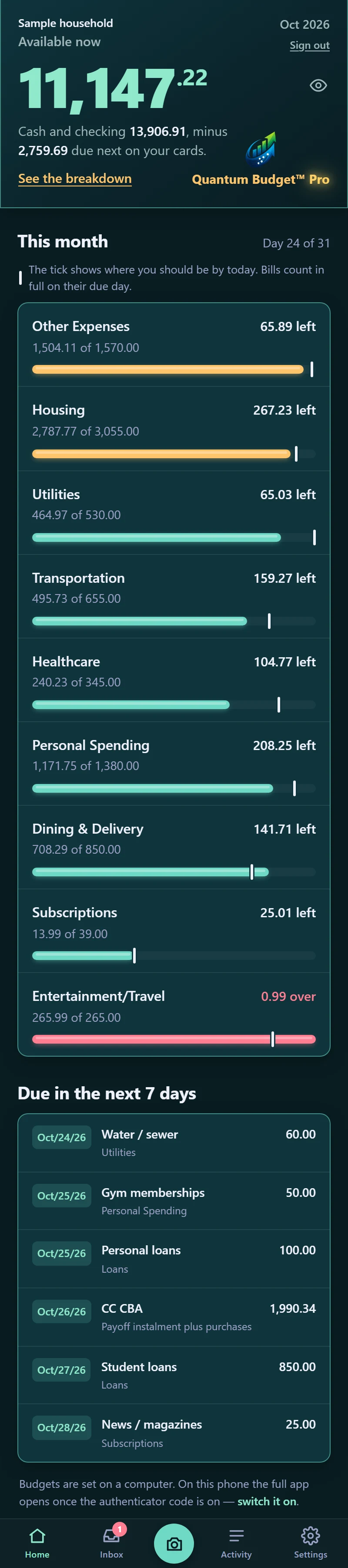
- A look at the month on your phone, with a mark for where you should be by today.
A worked example: John and Mary
John and Mary are an example household. Every figure here is invented.
John has kept the family budget in a spreadsheet since January: their categories, their accounts, the year’s budget with due days, and every entry so far — about 600 lines by October.
Mary has never opened it. She keeps her receipts in her bag, and every second weekend John types them in.
In October they decide to try the online app. Here’s what moving looks like:
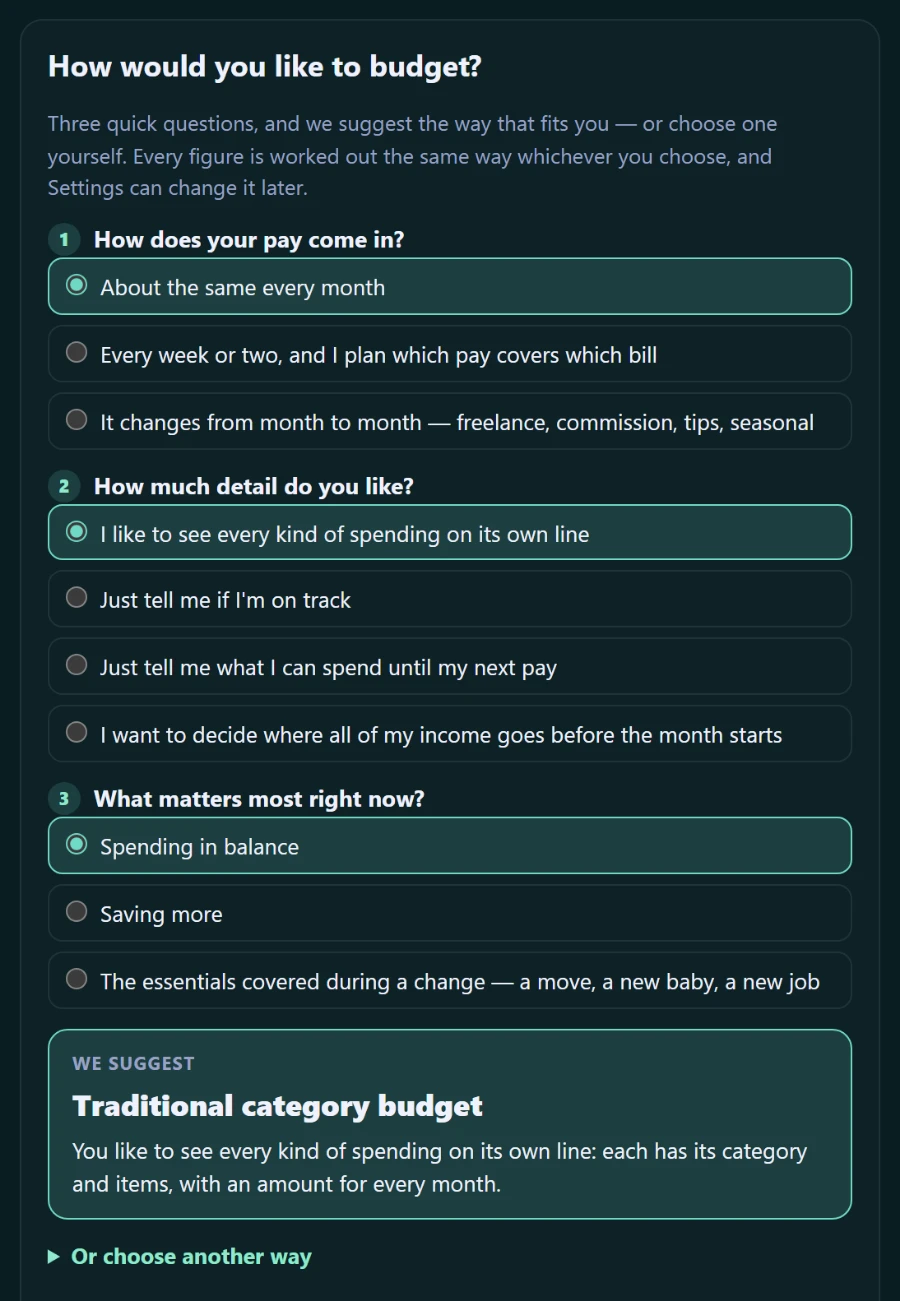
- 1John chooses how they budget. Setting up, the app asks three quick questions and suggests a way. He picks the traditional category budget — a line for every kind of spending, which is exactly what his spreadsheet does.
- 2He sets up the year in one evening, with the spreadsheet open beside him: their categories and lines, each month’s figures, the due days, and what each account held on January 1st.
- 3He brings in the bank’s own file to fill in this year’s entries, rather than typing 600 lines again.
- 4The next morning, Mary photographs a receipt at the pharmacy and files it from the Inbox that evening. It’s the first entry she has ever made herself.
Their method didn’t change at all. Same categories, same lines, same year. What changed is where the entries come from, and that both of them now see the same plan.
John keeps the spreadsheet as the record of the months before. Nothing says it has to go.
Bringing a Quantum Budget workbook in directly
If your spreadsheet is a Quantum Budget workbook, the app reads it in one go: your categories, accounts, the year’s budget with its due days, the opening balances and every entry. In the workbook, press Export for Online App on the Setup tab. In the app, choose that file under Settings, Your data. You see what it holds before anything is loaded. For any other spreadsheet, the steps below work just as well.
Moving any spreadsheet over
Every spreadsheet is laid out differently, so its history can’t simply be read in. But the method moves easily:
- Set up the year once. Your categories and lines, each month’s figures, your due days. For most households this is one evening — and you’d have done it in January anyway.
- Bring in your bank’s own file to fill in this year’s entries, if you like, rather than retyping them.
- Keep your old spreadsheet as your record of earlier years. Nothing says it has to go.
Doing it in Quantum Budget
Quantum Budget‘s method was designed in Excel first, and the app keeps it:
- The year on one screen: every month across, every line down, each bill with its due day, and the cash-flow line at the top.
- Start the way you budget. When you set up, choose from eight ways — a traditional category budget like most spreadsheets, 50/30/20, zero-based, pay yourself first, by paycheck, one number to spend until payday, variable income, or essentials first — and three quick questions suggest the one that fits. Every figure is worked out the same way, whichever you choose.
- Bring in a Quantum Budget workbook with the workbook’s own Export for Online App button.
- Download everything as a spreadsheet, any time.
- No bank login, ever. Type your entries, photograph receipts, or bring in the file your bank already offers.
- Light shows where you stand. Pro also shows where you are heading, with the Rolling Budget, a forecast of the rest of your year.
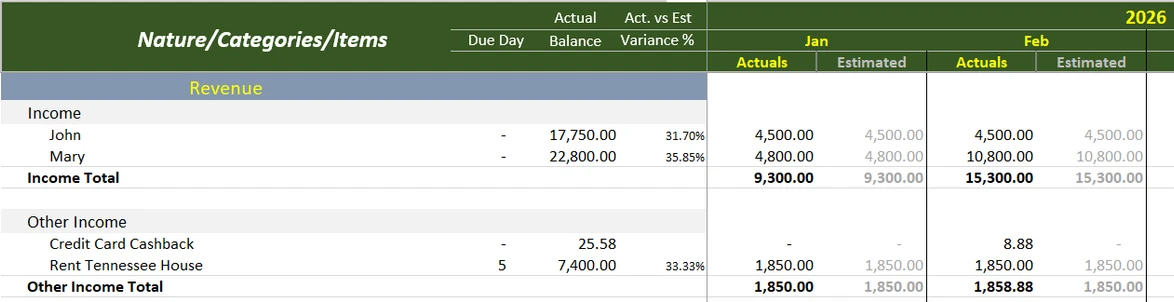
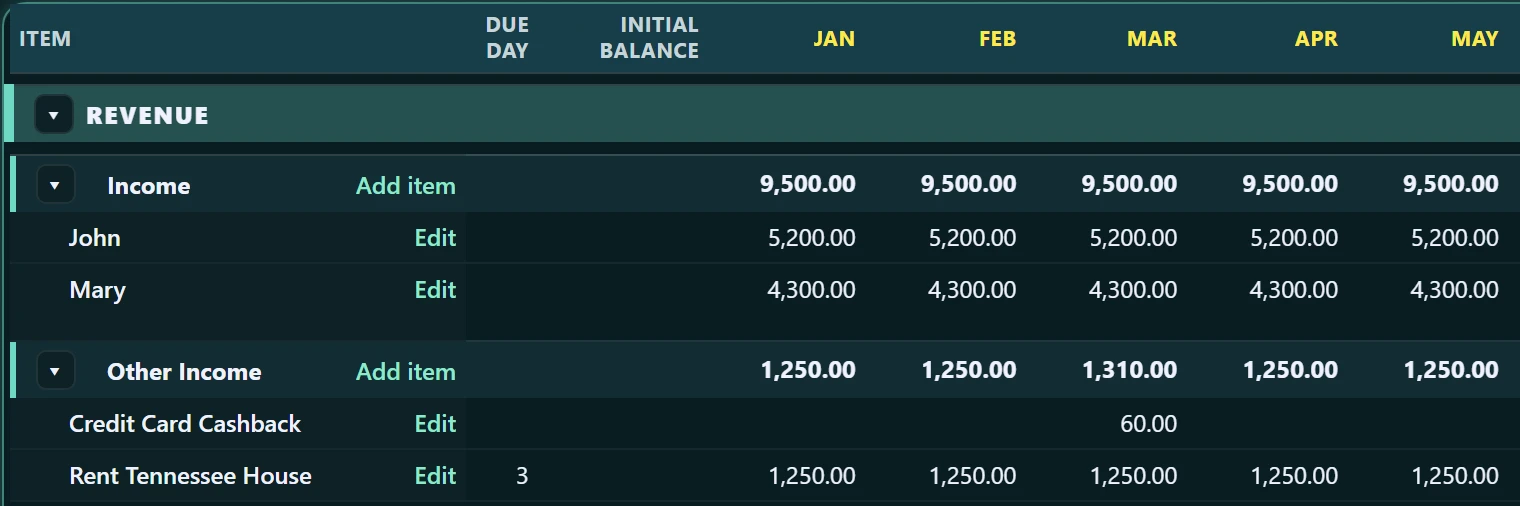
Your spreadsheet, grown up sets out, on one page, what comes with you and what you gain.
Prefer to stay in Excel?
That’s a fine choice too. Quantum Budget for Excel is still on sale: a workbook you buy once and keep on your own computer, for Microsoft Excel on Windows — Light US$29.99, Pro US$49.99. If you want the phone and the shared plan later, you can move over at any time and bring the workbook straight in.
30 days free
Try the app for 30 days
Light: US$4.99 a month or US$39 a year
Pro: US$8.99 a month or US$79.99 a year
30 days free on either plan. Your card is taken at the start and not charged for 30 days; cancel within them and you pay nothing.
Quantum Budget is budgeting software. It does not connect to a bank, does not hold or move money, and nothing in this article is financial advice.